
Downloads
Stay up-to-date with firmware updates and templates.
Please select your product:
PSR
GT5.0 Elite Pro Dashboard
Sim Screen Dashboard
(Legacy) GT5.0 Elite Dashboard
(Legacy) GT5.0 Dashboard
(Legacy) Flag Light

PSR SimHub Guide
This guide shows you how to setup your PSR product with SimHub to configure templates and profiles. Please watch the tutorial video or scroll down to find the written instructions.

Step 1: Download SimHub
Use the buttons on the right to download the latest version of SimHub and get a license (recommended).
Purchasing a license allows SimHub and connected devices to run at 60Hz. Without a license, the default refresh rate is 10Hz. We highly recommend obtaining a license for the optimal experience and to support ongoing development efforts of SimHub.
Step 2: Select your device
Go to the tab "devices" within SimHub and find your device using autodetection. If your device is not found, use the manual configuration.
Autodetection

For PSR products that include LEDs (such as the GT5.0 Elite Pro), SimHub will automatically detect the device.
Display only devices without LEDs will appear as a “Generic VoCore Screen” (e.g., Sim Screen 5.0 and Sim Screen 6.8).
Manual configuration

All PSR devices that are compatible with SimHub can be found under the Printed Sim Racing brand in the SimHub device list.
Step 3: Template and LED profile
Select your previously added device and set your desired template and LED profile. Scroll down to see our SimHub recommendations on the downloads page!

Sim Screen Dashboard
PSR SimHub Guide
This guide shows you how to setup your PSR product with SimHub to configure templates and profiles. Please watch the tutorial video or scroll down to find the written instructions.
Step 1: Download SimHub
Use the buttons on the right to download the latest version of SimHub and get a license (recommended).
Purchasing a license allows SimHub and connected devices to run at 60Hz. Without a license, the default refresh rate is 10Hz. We highly recommend obtaining a license for the optimal experience and to support ongoing development efforts of SimHub.
Step 2: Select your device
Go to the tab "devices" within SimHub and find your device using autodetection. If your device is not found, use the manual configuration.
Autodetection
For PSR products that include LEDs (such as the GT5.0 Elite Pro), SimHub will automatically detect the device.
Display only devices without LEDs will appear as a “Generic VoCore Screen” (e.g., Sim Screen 5.0 and Sim Screen 6.8).
Manual configuration
All PSR devices that are compatible with SimHub can be found under the Printed Sim Racing brand in the SimHub device list.
Step 3: Template and LED profile
Select your previously added device and set your desired template and LED profile. Scroll down to see our SimHub recommendations on the downloads page!

PSR SimHub Guide
This guide shows you how to setup your PSR product with SimHub to configure templates and profiles. Please watch the tutorial video or scroll down to find the written instructions.
Step 1: Download SimHub
Use the buttons on the right to download the latest version of SimHub and get a license (recommended).
Purchasing a license allows SimHub and connected devices to run at 60Hz. Without a license, the default refresh rate is 10Hz. We highly recommend obtaining a license for the optimal experience and to support ongoing development efforts of SimHub.
Step 2: Select your device
Go to the tab "devices" within SimHub and find your device using autodetection. If your device is not found, use the manual configuration.
Autodetection
For PSR products that include LEDs (such as the GT5.0 Elite Pro), SimHub will automatically detect the device.
Display only devices without LEDs will appear as a “Generic VoCore Screen” (e.g., Sim Screen 5.0 and Sim Screen 6.8).
Manual configuration
All PSR devices that are compatible with SimHub can be found under the Printed Sim Racing brand in the SimHub device list.
Step 3: Template and LED profile
Select your previously added device and set your desired template and LED profile. Scroll down to see our SimHub recommendations on the downloads page!

PSR SimHub Guide
This guide shows you how to setup your PSR product with SimHub to configure templates and profiles. Please watch the tutorial video or scroll down to find the written instructions.
Step 1: Download SimHub
Use the buttons on the right to download the latest version of SimHub and get a license (recommended).
Purchasing a license allows SimHub and connected devices to run at 60Hz. Without a license, the default refresh rate is 10Hz. We highly recommend obtaining a license for the optimal experience and to support ongoing development efforts of SimHub.
Step 2: Select your device
Go to the tab "devices" within SimHub and find your device using autodetection. If your device is not found, use the manual configuration.
Autodetection
For PSR products that include LEDs (such as the GT5.0 Elite Pro), SimHub will automatically detect the device.
Display only devices without LEDs will appear as a “Generic VoCore Screen” (e.g., Sim Screen 5.0 and Sim Screen 6.8).
Manual configuration
All PSR devices that are compatible with SimHub can be found under the Printed Sim Racing brand in the SimHub device list.
Step 3: Template and LED profile
Select your previously added device and set your desired template and LED profile. Scroll down to see our SimHub recommendations on the downloads page!

PSR SimHub Guide
This guide shows you how to setup your PSR product with SimHub to configure templates and profiles. Please watch the tutorial video or scroll down to find the written instructions.
Step 1: Download SimHub
Use the buttons on the right to download the latest version of SimHub and get a license (recommended).
Purchasing a license allows SimHub and connected devices to run at 60Hz. Without a license, the default refresh rate is 10Hz. We highly recommend obtaining a license for the optimal experience and to support ongoing development efforts of SimHub.
Step 2: Select your device
Go to the tab "devices" within SimHub and find your device using autodetection. If your device is not found, use the manual configuration.
Autodetection
For PSR products that include LEDs (such as the GT5.0 Elite Pro), SimHub will automatically detect the device.
Display only devices without LEDs will appear as a “Generic VoCore Screen” (e.g., Sim Screen 5.0 and Sim Screen 6.8).
Manual configuration
All PSR devices that are compatible with SimHub can be found under the Printed Sim Racing brand in the SimHub device list.
Step 3: Template and LED profile
Select your previously added device and set your desired template and LED profile. Scroll down to see our SimHub recommendations on the downloads page!
Select your product:
Default Headline
GT5.0 Elite Pro Dashboard
PSR SimHub Guide
This guide shows you how to setup your PSR product with SimHub to configure templates and profiles. Please watch the tutorial video or scroll down to find the written instructions.
Step 1: Download SimHub
Use the buttons on the right to download the latest version of SimHub and get a license (recommended).
Purchasing a license allows SimHub and connected devices to run at 60Hz. Without a license, the default refresh rate is 10Hz. We highly recommend obtaining a license for the optimal experience and to support ongoing development efforts of SimHub.
Step 2: Select your device
Go to the tab "devices" within SimHub and find your device using autodetection. If your device is not found, use the manual configuration.
Autodetection
For PSR products that include LEDs (such as the GT5.0 Elite Pro), SimHub will automatically detect the device.
Display only devices without LEDs will appear as a “Generic VoCore Screen” (e.g., Sim Screen 5.0 and Sim Screen 6.8).
Manual configuration
All PSR devices that are compatible with SimHub can be found under the Printed Sim Racing brand in the SimHub device list.
Step 3: Template and LED profile
Select your previously added device and set your desired template and LED profile. Scroll down to see our SimHub recommendations on the downloads page!
Sim Screen Dashboard
PSR SimHub Guide
This guide shows you how to setup your PSR product with SimHub to configure templates and profiles. Please watch the tutorial video or scroll down to find the written instructions.
Step 1: Download SimHub
Use the buttons on the right to download the latest version of SimHub and get a license (recommended).
Purchasing a license allows SimHub and connected devices to run at 60Hz. Without a license, the default refresh rate is 10Hz. We highly recommend obtaining a license for the optimal experience and to support ongoing development efforts of SimHub.
Step 2: Select your device
Go to the tab "devices" within SimHub and find your device using autodetection. If your device is not found, use the manual configuration.
Autodetection
For PSR products that include LEDs (such as the GT5.0 Elite Pro), SimHub will automatically detect the device.
Display only devices without LEDs will appear as a “Generic VoCore Screen” (e.g., Sim Screen 5.0 and Sim Screen 6.8).
Manual configuration
All PSR devices that are compatible with SimHub can be found under the Printed Sim Racing brand in the SimHub device list.
Step 3: Template and LED profile
Select your previously added device and set your desired template and LED profile. Scroll down to see our SimHub recommendations on the downloads page!
(Legacy) GT5.0 Elite Dashboard
PSR SimHub Guide
This guide shows you how to setup your PSR product with SimHub to configure templates and profiles. Please watch the tutorial video or scroll down to find the written instructions.
Step 1: Download SimHub
Use the buttons on the right to download the latest version of SimHub and get a license (recommended).
Purchasing a license allows SimHub and connected devices to run at 60Hz. Without a license, the default refresh rate is 10Hz. We highly recommend obtaining a license for the optimal experience and to support ongoing development efforts of SimHub.
Step 2: Select your device
Go to the tab "devices" within SimHub and find your device using autodetection. If your device is not found, use the manual configuration.
Autodetection
For PSR products that include LEDs (such as the GT5.0 Elite Pro), SimHub will automatically detect the device.
Display only devices without LEDs will appear as a “Generic VoCore Screen” (e.g., Sim Screen 5.0 and Sim Screen 6.8).
Manual configuration
All PSR devices that are compatible with SimHub can be found under the Printed Sim Racing brand in the SimHub device list.
Step 3: Template and LED profile
Select your previously added device and set your desired template and LED profile. Scroll down to see our SimHub recommendations on the downloads page!
(Legacy) GT5.0 Dashboard
PSR SimHub Guide
This guide shows you how to setup your PSR product with SimHub to configure templates and profiles. Please watch the tutorial video or scroll down to find the written instructions.
Step 1: Download SimHub
Use the buttons on the right to download the latest version of SimHub and get a license (recommended).
Purchasing a license allows SimHub and connected devices to run at 60Hz. Without a license, the default refresh rate is 10Hz. We highly recommend obtaining a license for the optimal experience and to support ongoing development efforts of SimHub.
Step 2: Select your device
Go to the tab "devices" within SimHub and find your device using autodetection. If your device is not found, use the manual configuration.
Autodetection
For PSR products that include LEDs (such as the GT5.0 Elite Pro), SimHub will automatically detect the device.
Display only devices without LEDs will appear as a “Generic VoCore Screen” (e.g., Sim Screen 5.0 and Sim Screen 6.8).
Manual configuration
All PSR devices that are compatible with SimHub can be found under the Printed Sim Racing brand in the SimHub device list.
Step 3: Template and LED profile
Select your previously added device and set your desired template and LED profile. Scroll down to see our SimHub recommendations on the downloads page!
(Legacy) Flag Light
PSR SimHub Guide
This guide shows you how to setup your PSR product with SimHub to configure templates and profiles. Please watch the tutorial video or scroll down to find the written instructions.
Step 1: Download SimHub
Use the buttons on the right to download the latest version of SimHub and get a license (recommended).
Purchasing a license allows SimHub and connected devices to run at 60Hz. Without a license, the default refresh rate is 10Hz. We highly recommend obtaining a license for the optimal experience and to support ongoing development efforts of SimHub.
Step 2: Select your device
Go to the tab "devices" within SimHub and find your device using autodetection. If your device is not found, use the manual configuration.
Autodetection
For PSR products that include LEDs (such as the GT5.0 Elite Pro), SimHub will automatically detect the device.
Display only devices without LEDs will appear as a “Generic VoCore Screen” (e.g., Sim Screen 5.0 and Sim Screen 6.8).
Manual configuration
All PSR devices that are compatible with SimHub can be found under the Printed Sim Racing brand in the SimHub device list.
Step 3: Template and LED profile
Select your previously added device and set your desired template and LED profile. Scroll down to see our SimHub recommendations on the downloads page!
PSR SimHub Recommendations
Maximise the performance of your PSR display with our hand-picked SimHub recommendations. From powerful plugins to beautifully crafted community dashboards, these tools give you more data, more control, and more ways to tailor your setup to your driving style.

Capture Screen Dashboard Template

These templates allow your dashboard to display a live captured section of your monitor. They can be used to recreate GT-style mirror displays, keep replay controls visible, or show parts of the screen that would normally be hidden behind the dashboard, such as the taskbar or in-game HUD elements.
Lovely Simracing
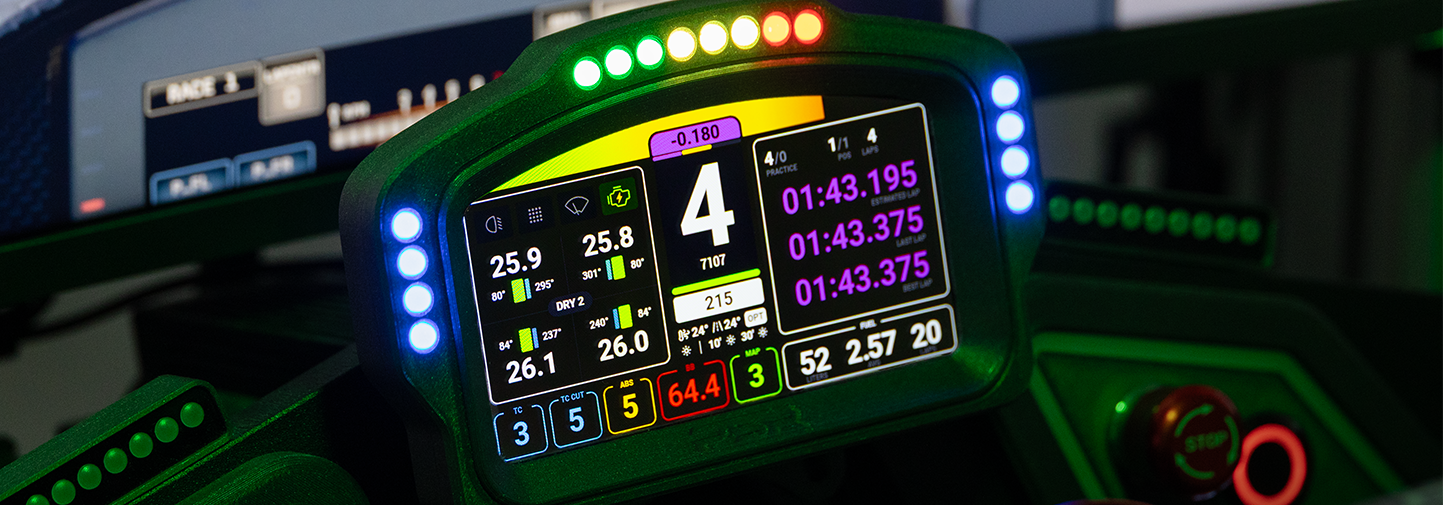
Lovely Dashboard is a polished SimHub telemetry dashboard used by thousands of sim racers worldwide, from beginners to pros. It delivers clean, consistent data across all major simulators, offering real-time speed, RPM, sector, lap, tyre and race info, with highly customisable layouts and stream overlays for every setup.
Lovely Plugin
The Lovely SimHub plugin is required to run Lovely Dashboard, enabling easy configuration of all dashboard features and settings.
ATSR Hub EVO
ATSR-Hub EVO is a powerful SimHub plugin that lets you configure nearly any LED device. From steering wheels to dashboards, adding telemetry driven LED feedback, custom themes, and matching RPM lights for supported cars. It offers easy configuration between various installed devices supported by SimHub.
Community Dashboard Templates
The SimHub community has developed a diverse collection of impressive dashboard templates. These creations designed by the community offer a range of functionalities and styles. These provide users with numerous options to enhance and personalize their simulation setups. We highly recommend exploring these dashboards to elevate your SimHub experience among side our products.


